
Meet page guide: your website agent now shows visitors where to go, not just tells them

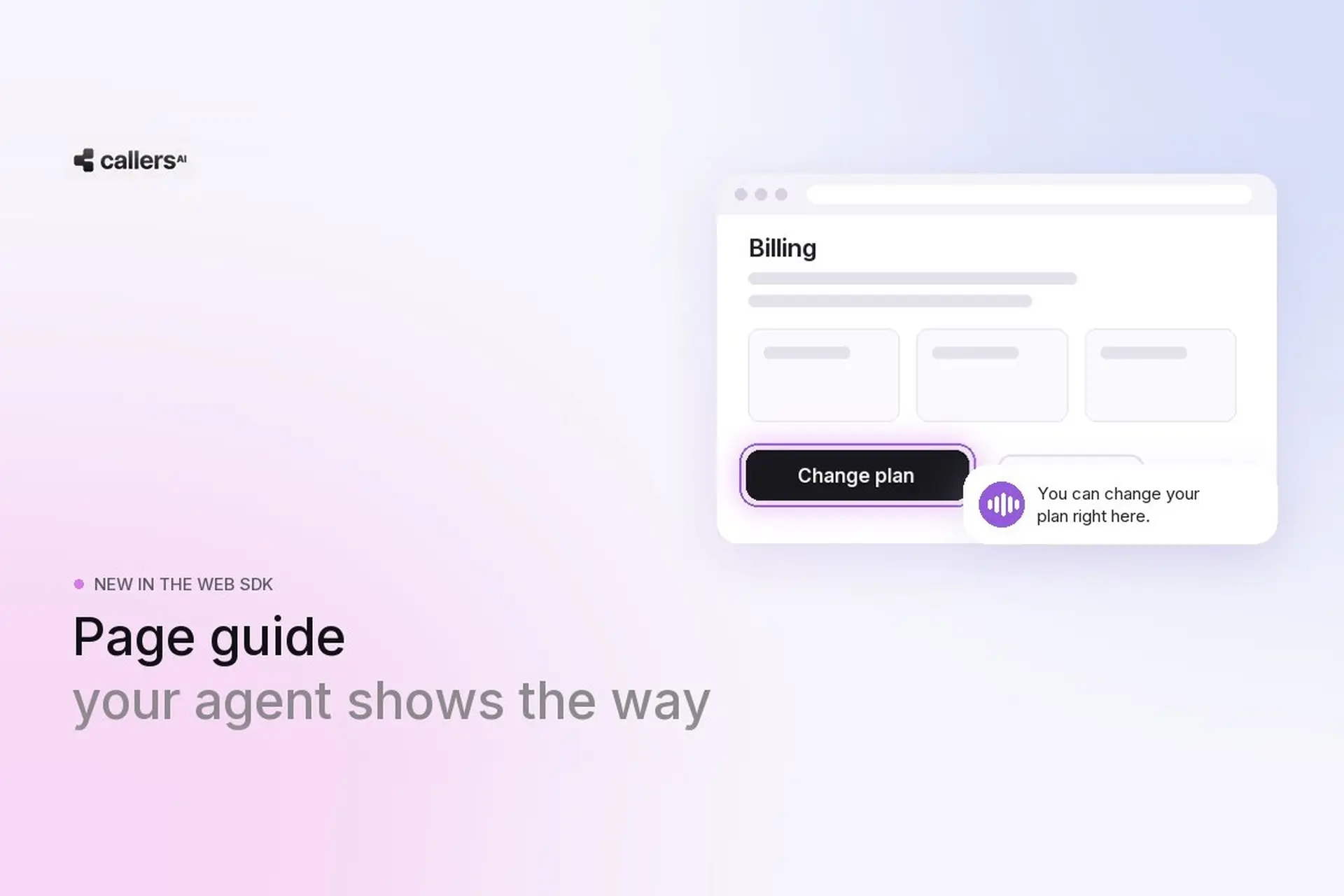
Every support team knows the moment. A customer is on the right page, the answer is on the screen, and they still cannot find it. So they call, or they open a chat and type "where do I change my plan?" and someone has to describe a button: "top right, under your name, the second item."
Today we are introducing page guide in the Callers AI web SDK. When a visitor talks to the voice agent on your website, the agent can now see the page they are on and point at it while it speaks. Ask "where do I change my plan?" and the page scrolls to the right button, a soft ring marks it, and the agent says "click Change plan." The visitor sees the answer and hears it at the same moment.
And it does all of that without ever pressing a button for them.
What does page guide do?
Page guide gives the agent a small set of actions, each timed to the words it is saying:
Highlight. The element the agent is talking about is scrolled into view and marked with a gentle ring, while the rest of the page is shaded very lightly. You pick the look: soft, glow, outline, spotlight, or no drawing at all.
Scroll. The page brings a section to the center of the screen, for example the pricing table when someone asks what it costs.
Open a link on your site. If you allow it, the agent can open a real link that is on the page and stays on your own website, such as your pricing or help page. It never opens a free-form address and never leaves your site.
Fill fields the visitor dictated. If you allow it, the agent can type into a form what the visitor just said, such as their name, email or city, then reads it back so the visitor can correct it.
Actions land on the words they belong to. When the visitor interrupts, pending highlights are canceled, the way a person stops pointing.
Why does a website agent need to see the page?
A knowledge base answers "what are your opening hours." It cannot answer "where is the thing I need on this screen." That answer is the screen itself.
With page guide, the agent answers from what is actually in front of the visitor: the buttons, headings, prices and form fields on that page at that moment. On an account page it can point at last month's invoice row. On a long marketing page it can scroll to the section that answers the question. On a signup form it can walk the visitor through one field at a time.
For companies that serve consumers at scale, that matters in three places:
Self service that actually finishes. Visitors who are shown where to go complete the task on the page instead of opening a ticket.
Fewer "where is it" contacts. Questions about navigation are often the simplest ones to answer and the most repetitive for your team.
Forms that get completed. Long forms are where visitors give up. Talking through them, with the agent typing what they say, is easier on a phone and for people who find forms hard.
The page guide never clicks. That is the point.
We made a deliberate choice: the agent points, the visitor acts.
Page guide never clicks, never submits a form, never ticks a checkbox and never presses a key. When a form is ready, the agent highlights your submit button and asks the visitor to press it. When the item the visitor needs is inside a closed menu, the agent points at the menu button and waits; once the visitor opens the menu, the highlight moves to the item on its own.
Why? A widget that clicks things on your site can click the wrong thing: log someone out, place an order or send a form too early. Consent, such as accepting terms, and sending a form should always be the customer's own act. Pointing, scrolling and typing only what it was told keeps the guide helpful and safe on every page.
How does page guide protect customer data?
Trust is built into how the agent sees the page, not added afterwards. Every rule below runs in the visitor's browser, before anything leaves it:
Form contents are never read. The agent sees that a field is filled or empty, never what is in it.
Private fields are off limits. Password fields, card number and security code fields, one-time codes and similar fields are marked private. The agent cannot read them and refuses to fill them.
Personal details in page text are hidden. Emails, phone and account numbers and long IDs are replaced before the page description is sent.
You choose what stays private. Mark any section, such as saved payment methods or account details, and it is never shared with the agent at all.
The agent sees a text description, never a screenshot. And only of the page the widget is on, never other tabs.
The visitor is always in control. While page guide is on, the call window shows a short line, "The agent can see this page", with a Stop button. One tap turns sharing off for the rest of the call.
It only fills what the visitor said. The agent is instructed never to invent or guess a value, and it will not touch checkboxes, radio buttons, disabled fields or buttons.
Text on the page is treated as content, not as instructions. Even if a page contained hidden text trying to steer the agent, the most it could do is what you already allowed: highlight something, open a link on your own site, or fill a field.
How do you turn it on?
Page guide is part of the Callers AI web SDK. If you already have the website widget, it is one attribute on the same script tag:
By default the agent can highlight and scroll. Opening links and filling fields are off until you list them. You do not change your agent's script: page guide gives the agent the ability for that call, and your script can still say what to help with, for example "guide visitors to the right plan."
A few practical notes from building it:
Single-page apps keep the call going. When the agent opens a link in a single-page app, the call carries on. On a classic multi-page site, opening a new page ends the call, so many teams keep links off and let the agent highlight them instead.
You can check what is shared. One method returns the exact text the agent would receive on any page.
Where page guide fits
Page guide is one more piece of the same Callers AI agent that answers your phone lines, texts and emails. The website version now does what a good human agent does on a screen share: it looks at what the customer sees, points, and lets them click. If you are evaluating website and phone agents together, our guide to AI call agents covers the phone side, and AI to human handoff covers what happens when a person needs to step in.
FAQ
Can the page guide click buttons or submit forms for my customers? No. It never clicks, submits, ticks checkboxes or presses keys. It highlights the button and asks the visitor to press it.
Which form fields can it fill? Only text fields, text areas and dropdowns, and only with values the visitor said in the conversation. It refuses passwords, card details, one-time codes, checkboxes, and disabled or read-only fields. Filling is off until you turn it on.
Does the agent see what my customers type? No. Fields are described as filled or empty, never by their contents, and emails, phone numbers and long IDs in page text are hidden before anything leaves the browser.
Can visitors turn it off? Yes. The call window shows that the agent can see the page, with a Stop button that ends sharing for the rest of the call.
Read the full setup guide in the page guide docs, try it with your own agent in the web SDK playground, or start at callers.ai.